Showing Posts From
Stl
- 18 Sep, 2017
- 4 min read
Create Your Own 3D Printed Topographical Map - mini mountain raised relief maps
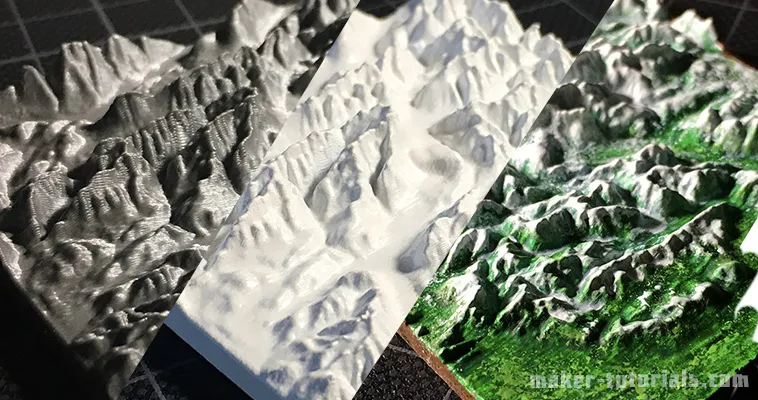
You climbed on top of one of the highest moutains and want to make a small 3D model of the landscape? Such a minature mountain is a nice gift for climbers, skier or a memory of a beautiful moment. In this tutorial you will learn how you can print a minature landscape with a 3D printer and what you need to take care of. Tombola You can win 1 of 3 3D printed model of the landscape or mountain of your choice with the size of 10 cm by 10 cm. Share this article pubicly on Facebook (until 22.10.2017) and write the area for the model and the link into the comment section below the article. Free shipping only to Germany. Buy Minature Landscape or Mountain If you do not have the possibility to print the model yourself I can happily provide you an offer (invoice including VAT). You can send inquiries via email or through the contact form. Models up to 23 cm width and length are possible. ContentsWhat is a Topographic Map? A topographic map is a map that is used to display exactly the landform (topography) and other visible details of the earth's surface. The landform is usually shown with contour lines which are completed with prominent spoit heights, such as peaks or summits, as well as the route of waters.How to Create a STL 3D Printing File from Google's Topographic Map? Option 1: Terrain2STLFree Quick and simple Crashes sometimes while using large areas No preview of the STL file Only rectangular selections can be created The simplest way to create a STL file from a topographic map is to use the website Terrain2STL.Search the desired area via drag&drop on the google map.Click on "Center to View" under Location. A red square will be shown in the middle of the map. This is the area that will be used for the 3D model.You can fine tune the details of the 3D model to the map in the section "Model Details". Box Size: Size of the marked area Box Scaling Factor: The marked are can be increased with this option, however, details in the 3D model will be reduced Box Rotation: The marked area can be rotated Vertical Scaling: Higher values increase the differences in heights in the 3D model The height of the ground can be set in the section "Water and Base Settings" -> "Base Height". Problems with Terrain2STL Unfortunately, the area for the model cannot be adjusted in wigth or height. If so, one could make a elongated map. An option would be to use a program such as Meshmixer to adjust the model to your own wishes and needs. During the generation of large models, Terrain2STL crashed sometimes. Nevertheless, the page is helpful and free of charge. You can support the developer here. Option 2: Sightline MapsFree Preview of the 3D model in the browser Colored 3D model (OBJ-Datei) will be exported STL file is too detailed an can be, depending of the selection, several GB large You can create the STL file on the website sightlinemaps.com The service is free, you only need to register with your email. In the following image all 4 steps are marked that are required to create a topographic STL file. The scale of the height can be adjusted on the next page. Download the single colour STL file for normal FDM and SLA printer. With the OBJ file you can create a coloured 3D print or use the topographic model in a 3D software. You will receive the Download link via email within 5 to 10 minutes.3D Print a Topographic Map with the Vase-Mode Why print the topographic map with the vase-mode? The main reason is that the printing time is reduced by almost the half and there will be no blobs at the end of the layers. Vase-Mode: 33 minures Normal: 52min (without Infill) When you print the model in the vase-mode, you need to align it vertically. This way, the details will be printed best (left image). In case you have problems during as your model falls over use a raft. 3D model of the Zugspitze, 5.5 cm x 6 cm x 0.8 cm, 50 min print duration, 0.1mm Layer height, Prusa i3 MK2 printer 3D model with a primer layer and a layer of white. ...and to make it look more naturally I painted the 3D model with acrylic paint.
- 10 Aug, 2017
- 3 Min. Lesezeit
3D-Landkarten mit dem 3D-Drucker erstellen - topographische karte, Miniatur Berg
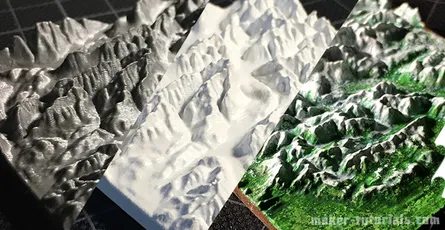
Du hast einen der höchsten Berge bestiegen und möchtest ein kleines 3D-Modell von der Landschaft? Solch ein Miniatur Berg ist auch ein tolles Geschenk für Bergsteiger, Skifahrer, oder eine Erinnerung an einen schönen Moment. In dieser Anleitung wird erklärt, wie du dir eine Miniaturlandschaft mit einem 3D-Drucker drucken kannst und worauf du achten musst. InhaltWas ist eine topografische Karte? Eine topografische Karte (auch topographische Karte) ist eine mittel- bis großmaßstäbige Karte, die zur genauen Abbildung der Geländeformen (Topografie) und anderer sichtbarer Details der Erdoberfläche dient. Das Gelände wird in der Regel durch Höhenlinien dargestellt, ergänzt um markante Höhenpunkte (Gipfel, Sättel usw.) und den Verlauf der Gewässer.Wie aus einer Google topographischen Karte eine STL 3D-Druck Datei erstellen? Variante 1: Terrain2STLkostenlos schnell und einfach stürzt bei großen Flächen manchmal ab keine Vorschau der STL-Datei Markierung läßt sich nur Rechteckig erstellen Am einfachsten läßt sich eine STL-Datei aus einer topographischen Karte mit der Webseite Terrain2STL erstellen.Die gewünschte Stelle per Drag&Drop mit der Google Karte suchen.Unter Location auf "Center to View" klicken. Es wird ein rotes Viereck in der Mitte der Karte angezeigt. Das ist der Bereich für das 3D Modell.Unter "Model Details" kannst du die Feinheiten des 3D-Modells der Karte anpassen. Box Size: Größe des markierten Bereiches Box Scaling Factor: der markierte Bereich läßt sich damit Vergrößern, Details im 3D-Modell werden damit aber reduziert Box Rotation: der markierte Bereich kann damit gedreht werden Vertical Scaling: höhere Werte verstärken den Höhenunterschied im 3D-Modell Unter "Water and Base Settings" -> "Base Height" läßt sich noch die Höhe des Boden anpassen. Probleme mit Terrain2STL Leider läßt sich die Markierung für das Modell nicht in der Höhe oder Breite anpassen. So könnte man eine längliche Karte erstellen. Man kann natürlich in einem Programm wie Meshmixer das Model nach eigenen Wünschen anpassen. Beim erstellen von großen Modellen in Terrain2STL bleibt die Seite öfters hängen. Dennoch ist die Seite sehr hilfreich und kostenlos. Den Entwickler könnt ihr hier unterstützen. Variante 2: Sightline Mapskostenlos Vorschau des 3D-Modell im Browser farbiges 3D-Modell (OBJ-Datei) wird exportiert STL-Datei zu detaillierte, je nach Markierung mehrere GB groß Auf der Webseite sightlinemaps.com kannst du eine STL-Datei erstellen lassen. Der Service ist kostenlos. Du musst dich hier, aber mit deiner E-Mail anmelden. Im folgenden Bild sind die 4 Schritte markiert um eine topographische STL-Datei zu erstellen. Auf der nächsten Seite kannst du noch die Höhenskalierung ändern. Für normale FDM und SLA Drucker, lädst du dir die einfarbige STL-Datei herunter. Mit der OBJ-Datei kannst du ein farbigen 3D-Druck erstellen lassen, oder das topographische Model in einer 3D Software verwenden. Du erhältst nach 5-10 Minuten den Download Link per E-Mail.topographische Karte im Vase-Mode 3D drucken Warum die topographische Karte im Vase-Mode drucken? Der Hauptgrund ist, dass sich die Druckzeit um fast die Hälfte verkürzt und keine Blobs bei den Layerenden entstehen. Vase-Mode: 33 Minuten Normal: 52min (ohne Infill) Wenn du das Modell im Vase-Mode druckst, musst du es senkrecht ausrichten. So werden die Details auch am besten gedruckt (linkes Bild). Falls du beim drucken Probleme hast das dein Modell umfällt, verwende eine Raft. 3D-Modell der Zugspitze, 5,5cm x 6cm x 0,8cm, 50min Druckzeit, 0,1mm Layer height, Prusa i3 MK2 Drucker 3D-Modell mit einer Schicht Primer/Grundierung und einer Schicht weiss. ... und um das ganze noch etwas naturgetreuer aussehen zu lassen, habe ich das 3D-Modelll mit Acrylfarbe bemalt.