Showing Posts From
General
- 14 Apr, 2026
- 4 min read
Setting up the Penpot MCP Server with Docker and Traefik (Self-Hosted)
A walkthrough of getting the official Penpot MCP server running as a Docker container behind a Traefik reverse proxy, so Claude Code (or any MCP client) can interact with a self-hosted Penpot instance. Environment:Self-hosted Penpot 2.14 via Docker Compose Traefik v2 reverse proxy Domain: custom subdomain (mcp.example.com) MCP client: Claude Code CLIArchitecture The @penpot/mcp package runs three services inside one container:Port Purpose4400 Plugin UI (Vite dev server) — serves manifest.json and plugin.js4401 MCP HTTP server — what Claude Code connects to4402 WebSocket server — what the Penpot browser plugin connects toThe browser plugin (loaded inside Penpot) connects via WebSocket to port 4402. Claude Code connects via HTTP to port 4401. The manifest and plugin JS are served from port 4400.Hickup 1: sh: pnpm: not found Problem: The penpot-mcp binary runs corepack pnpm run bootstrap on every startup. The bootstrap script spawns a subshell running pnpm -r install && pnpm run build && pnpm run start. Even after installing pnpm, the subshell couldn't find it. Attempts that failed:npm install -g pnpm — pnpm installed but not visible in bootstrap subshell corepack enable alone — creates a shim but doesn't download the actual pnpm binaryFix: Use corepack prepare pnpm@latest --activate — this actually downloads and activates the pnpm binary, not just a shim. Also switch from node:22-alpine (busybox ash) to node:22-slim (Debian) for more predictable shell PATH behavior. FROM node:22-slim ENV PNPM_HOME="/pnpm" ENV PATH="$PNPM_HOME:$PATH" RUN corepack enable && corepack prepare pnpm@latest --activate && npm install -g @penpot/mcp@latestHickup 2: Vite blocks the custom domain Problem: The plugin UI (port 4400) is a Vite dev server. Vite 6+ blocks requests with a Host header that isn't localhost. When Traefik forwarded https://mcp.example.com/manifest.json to the container, Vite returned: Blocked request. This host ("mcp.example.com") is not allowed. To allow this host, add "mcp.example.com" to `preview.allowedHosts` in vite.config.js.Fix: Add a Traefik middleware that rewrites the Host header to localhost:4400 before the request reaches Vite. Vite always allows localhost. - traefik.http.middlewares.penpot-mcp-host.headers.customrequestheaders.Host=localhost:4400 - traefik.http.routers.penpot-mcp-plugin.middlewares=penpot-mcp-hostHickup 3: Plugin manifest URL rejected by Penpot Problem: Penpot plugin manager said "The plugin doesn't exist or the URL is not correct" when entering the manifest URL. Root cause 1: Using http:// URL from an HTTPS Penpot instance. Browsers block mixed content — Penpot's frontend JS cannot fetch an HTTP resource from an HTTPS page. Always use https:// for the manifest URL. Root cause 2: The WebSocket URL (ws://localhost:4402) is burned into plugin.js at Vite build time via the WS_URI environment variable. Without setting this, the plugin tries to connect to ws://localhost:4402 — which fails as mixed content from an HTTPS origin. Fix: Set WS_URI in the container environment so Vite bakes the correct WSS URL into plugin.js during the startup build: environment: WS_URI: "wss://mcp.example.com/ws"Hickup 4: Wrong environment variable names Problem: The @penpot/mcp README documents several environment variables (PENPOT_MCP_SERVER_ADDRESS, MCP_PORT, PLUGIN_PORT, etc.) that are never actually read by the source code. Setting them has no effect. Variables that actually work: PENPOT_MCP_SERVER_HOST: "0.0.0.0" # bind address for MCP HTTP server PENPOT_MCP_SERVER_PORT: "4401" # MCP HTTP port PENPOT_MCP_WEBSOCKET_PORT: "4402" # WebSocket port PENPOT_MCP_PLUGIN_SERVER_HOST: "0.0.0.0" # bind address for Vite plugin server PENPOT_MCP_REMOTE_MODE: "true" # disables local filesystem tool WS_URI: "wss://mcp.example.com/ws" # WebSocket URL baked into plugin.jsHickup 5: WebSocket needs its own Traefik route Problem: Port 4402 (WebSocket) must be reachable as wss:// from the browser (mixed content rules apply). Simply exposing port 4402 on the host doesn't help — the browser can't use plain ws:// from an HTTPS page. Fix: Add a dedicated Traefik router for /ws that proxies to port 4402. Traefik handles WebSocket upgrades natively — no special configuration needed beyond routing the path. - traefik.http.middlewares.penpot-mcp-ws-strip.stripprefix.prefixes=/ws - traefik.http.routers.penpot-mcp-ws.rule=Host(`mcp.example.com`) && PathPrefix(`/ws`) - traefik.http.routers.penpot-mcp-ws.service=penpot-mcp-ws-svc - traefik.http.routers.penpot-mcp-ws.middlewares=penpot-mcp-ws-strip - traefik.http.routers.penpot-mcp-ws.priority=30 - traefik.http.services.penpot-mcp-ws-svc.loadbalancer.server.port=4402Final Working Docker Compose Service Replace mcp.example.com with your actual domain. penpot-mcp: build: context: . dockerfile_inline: | FROM node:22-slim RUN apt-get update && apt-get install -y --no-install-recommends \ ca-certificates git python3 make g++ \ && rm -rf /var/lib/apt/lists/* RUN corepack enable && corepack prepare pnpm@latest --activate RUN npm install -g @penpot/mcp@latest WORKDIR /usr/local/lib/node_modules/@penpot/mcp RUN corepack pnpm -r install CMD ["corepack", "pnpm", "run", "bootstrap"] container_name: penpot-mcp environment: PENPOT_MCP_SERVER_HOST: "0.0.0.0" PENPOT_MCP_SERVER_PORT: "4401" PENPOT_MCP_WEBSOCKET_PORT: "4402" PENPOT_MCP_REMOTE_MODE: "true" PENPOT_MCP_PLUGIN_SERVER_HOST: "0.0.0.0" WS_URI: "wss://mcp.example.com/ws" networks: - proxy-traefik-network restart: unless-stopped labels: - traefik.enable=true - traefik.docker.network=proxy-traefik-network # Router 1: MCP HTTP/SSE API (priority 20) - traefik.http.routers.penpot-mcp-api.rule=Host(`mcp.example.com`) && (PathPrefix(`/mcp`) || PathPrefix(`/sse`) || PathPrefix(`/messages`)) - traefik.http.routers.penpot-mcp-api.entrypoints=websecure - traefik.http.routers.penpot-mcp-api.tls=true - traefik.http.routers.penpot-mcp-api.tls.certresolver=myresolver - traefik.http.routers.penpot-mcp-api.service=penpot-mcp-api-svc - traefik.http.routers.penpot-mcp-api.priority=20 - traefik.http.services.penpot-mcp-api-svc.loadbalancer.server.port=4401 # Router 2: WebSocket bridge — /ws → port 4402 (priority 30) - traefik.http.middlewares.penpot-mcp-ws-strip.stripprefix.prefixes=/ws - traefik.http.routers.penpot-mcp-ws.rule=Host(`mcp.example.com`) && PathPrefix(`/ws`) - traefik.http.routers.penpot-mcp-ws.entrypoints=websecure - traefik.http.routers.penpot-mcp-ws.tls=true - traefik.http.routers.penpot-mcp-ws.tls.certresolver=myresolver - traefik.http.routers.penpot-mcp-ws.service=penpot-mcp-ws-svc - traefik.http.routers.penpot-mcp-ws.middlewares=penpot-mcp-ws-strip - traefik.http.routers.penpot-mcp-ws.priority=30 - traefik.http.services.penpot-mcp-ws-svc.loadbalancer.server.port=4402 # Router 3: Plugin UI / manifest.json / plugin.js catch-all (priority 10) # Rewrite Host header so Vite accepts the request - traefik.http.middlewares.penpot-mcp-host.headers.customrequestheaders.Host=localhost:4400 - traefik.http.routers.penpot-mcp-plugin.rule=Host(`mcp.example.com`) - traefik.http.routers.penpot-mcp-plugin.entrypoints=websecure - traefik.http.routers.penpot-mcp-plugin.tls=true - traefik.http.routers.penpot-mcp-plugin.tls.certresolver=myresolver - traefik.http.routers.penpot-mcp-plugin.middlewares=penpot-mcp-host - traefik.http.routers.penpot-mcp-plugin.service=penpot-mcp-plugin-svc - traefik.http.routers.penpot-mcp-plugin.priority=10 - traefik.http.services.penpot-mcp-plugin-svc.loadbalancer.server.port=4400Connecting Claude Code Add the MCP server globally: claude mcp add penpot -t http https://mcp.example.com/mcpOr edit ~/.claude.json directly under .mcpServers: "penpot": { "type": "http", "url": "https://mcp.example.com/mcp" }Installing the Plugin in PenpotOpen any Penpot file Main menu → Plugins → Manage plugins Add: https://mcp.example.com/manifest.json Open the plugin panel → click Connect to MCP serverOnce connected, Claude Code can create and manipulate shapes directly on the canvas.NotesThe bootstrap script runs pnpm -r install && pnpm run build && pnpm run start on every container start. Pre-installing deps in the image (RUN corepack pnpm -r install) cuts startup time significantly — the build step still runs at startup so WS_URI gets baked into plugin.js. Build time for the Docker image is ~5–10 minutes on first run (apt + npm + pnpm deps). An alternative, simpler MCP server using the Penpot REST API (no browser plugin required): zcube/penpot-mcp-server. Limitations vs @penpot/mcp: Uses the Penpot REST API — no direct canvas manipulation (can't create/move shapes in real time like the plugin API can) Self-hosted Penpot requires the enable-access-tokens feature flag set in your Penpot config before an access token can be generated Requires generating a personal access token in Penpot Settings and passing it as PENPOT_ACCESS_TOKEN No live design interaction — operations go through HTTP round-trips to the Penpot backend, not directly into the open design file
- 18 Sep, 2017
- 4 min read
Create Your Own 3D Printed Topographical Map - mini mountain raised relief maps
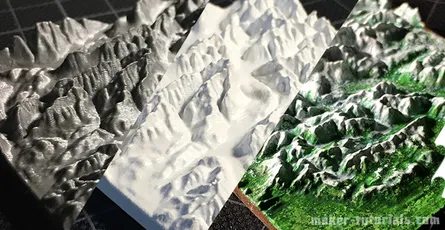
You climbed on top of one of the highest moutains and want to make a small 3D model of the landscape? Such a minature mountain is a nice gift for climbers, skier or a memory of a beautiful moment. In this tutorial you will learn how you can print a minature landscape with a 3D printer and what you need to take care of. Tombola You can win 1 of 3 3D printed model of the landscape or mountain of your choice with the size of 10 cm by 10 cm. Share this article pubicly on Facebook (until 22.10.2017) and write the area for the model and the link into the comment section below the article. Free shipping only to Germany. Buy Minature Landscape or Mountain If you do not have the possibility to print the model yourself I can happily provide you an offer (invoice including VAT). You can send inquiries via email or through the contact form. Models up to 23 cm width and length are possible. ContentsWhat is a Topographic Map? A topographic map is a map that is used to display exactly the landform (topography) and other visible details of the earth's surface. The landform is usually shown with contour lines which are completed with prominent spoit heights, such as peaks or summits, as well as the route of waters.How to Create a STL 3D Printing File from Google's Topographic Map? Option 1: Terrain2STLFree Quick and simple Crashes sometimes while using large areas No preview of the STL file Only rectangular selections can be created The simplest way to create a STL file from a topographic map is to use the website Terrain2STL.Search the desired area via drag&drop on the google map.Click on "Center to View" under Location. A red square will be shown in the middle of the map. This is the area that will be used for the 3D model.You can fine tune the details of the 3D model to the map in the section "Model Details". Box Size: Size of the marked area Box Scaling Factor: The marked are can be increased with this option, however, details in the 3D model will be reduced Box Rotation: The marked area can be rotated Vertical Scaling: Higher values increase the differences in heights in the 3D model The height of the ground can be set in the section "Water and Base Settings" -> "Base Height". Problems with Terrain2STL Unfortunately, the area for the model cannot be adjusted in wigth or height. If so, one could make a elongated map. An option would be to use a program such as Meshmixer to adjust the model to your own wishes and needs. During the generation of large models, Terrain2STL crashed sometimes. Nevertheless, the page is helpful and free of charge. You can support the developer here. Option 2: Sightline MapsFree Preview of the 3D model in the browser Colored 3D model (OBJ-Datei) will be exported STL file is too detailed an can be, depending of the selection, several GB large You can create the STL file on the website sightlinemaps.com The service is free, you only need to register with your email. In the following image all 4 steps are marked that are required to create a topographic STL file. The scale of the height can be adjusted on the next page. Download the single colour STL file for normal FDM and SLA printer. With the OBJ file you can create a coloured 3D print or use the topographic model in a 3D software. You will receive the Download link via email within 5 to 10 minutes.3D Print a Topographic Map with the Vase-Mode Why print the topographic map with the vase-mode? The main reason is that the printing time is reduced by almost the half and there will be no blobs at the end of the layers. Vase-Mode: 33 minures Normal: 52min (without Infill) When you print the model in the vase-mode, you need to align it vertically. This way, the details will be printed best (left image). In case you have problems during as your model falls over use a raft. 3D model of the Zugspitze, 5.5 cm x 6 cm x 0.8 cm, 50 min print duration, 0.1mm Layer height, Prusa i3 MK2 printer 3D model with a primer layer and a layer of white. ...and to make it look more naturally I painted the 3D model with acrylic paint.
- 06 Jul, 2016
- 1 min read
Install Discourse with Docker in a Subfolder with SSL and serve other content with nginx under the same domain
Discourse is a great free and open-source forum software. There is an Linux installation guide with docker, but Discourse runs with a subdomain like discourse.example.com. I want Discourse run in a subfolder like example.com/forum. There is a guide how to do this, but how to configure the nginx server to serve other content (example.com/index.html or example.com/otherContent) on the same machine?install discourse with docker on a linux server https://github.com/discourse/discourse/blob/master/docs/INSTALL-cloud.mdchange the port of the docker container and setup SSL with Let's Encrypt (don't use the subdomain like discourse.example.com use example.com) https://www.digitalocean.com/community/tutorials/how-to-install-discourse-behind-nginx-on-ubuntu-14-04create a folder for all the other content for your sitesudo mkdir -p /var/www/example.com/htmlif necessary change the owner to you or www-data sudo chown -R www-data:www-data /var/www/example.com/htmlThis is the root folder for your domain example.com Dont create a forum folder here, it will cause a conflict with the discourse docker redirect!change the /etc/nginx/sites-enabled/discourse to this and replace http://discourse.example.com with your url (use main url not subdomain)server { listen 80; server_name example.com; return 301 https://example.com$request_uri; } server { listen 443 ssl spdy; server_name example.com; ssl_certificate /etc/letsencrypt/live/example.com/fullchain.pem; ssl_certificate_key /etc/letsencrypt/live/example.com/privkey.pem; ssl_protocols TLSv1 TLSv1.1 TLSv1.2; ssl_ciphers 'ECDHE-RSA-AES128-GCM-SHA256:ECDHE-ECDSA-AES128-GCM-SHA256:ECDHE-RSA-AE$ ssl_prefer_server_ciphers on; location / { root /var/www/example.com/html; } location /forum/ { proxy_pass http://example.com:25654/; proxy_read_timeout 90; proxy_redirect http://example.com:25654/ https://example.com/; } }restart nginxsudo service nginx restartIf you go to example.com/forum your Discourse site should appear and if you go to example.com you should see your index.html (if you created one).